Signing Flow
This page describes the complete journey from opening a PDF to producing a signed, blockchain-anchored document.
Step-by-Step
1. Authentication & Identity
Before signing, the user must authenticate via one of:
- Magic link -- enter email, receive a 6-digit code, verify
- Google OAuth -- sign in with Google account
- Microsoft OAuth -- sign in with Microsoft account
After authentication, the user completes their signer profile (name, signer type, company, position). Both the JWT and profile are stored in the OS keychain and persist across app restarts.
The authentication method becomes the trust anchor recorded in each signature (e.g. "google", "microsoft", "email"), allowing verifiers to see how the signer's identity was confirmed.
2. Document Selection
The user opens a PDF through the file picker or via the OS "Open With" menu. A scrollable preview is rendered.
3. Signature Placement
The user drags their signature image onto the PDF preview. They can:
- Place signatures across multiple pages
- Resize and reposition each placement
- Add text fields (name, date, custom text)
- Drag saved text snippets from their library (e.g. pre-configured name, address, company)
- See a live preview of the QR code area
Signatures and text snippets can be saved to the My Library for reuse across documents. The library is stored locally in the app data directory and persists across sessions. Users can opt in to cloud sync to back up their library and access it on other devices.
4. Confirmation
A confirmation dialog shows the number of placements and warns that the action cannot be undone.
5. Processing
After confirmation, the app executes these steps:
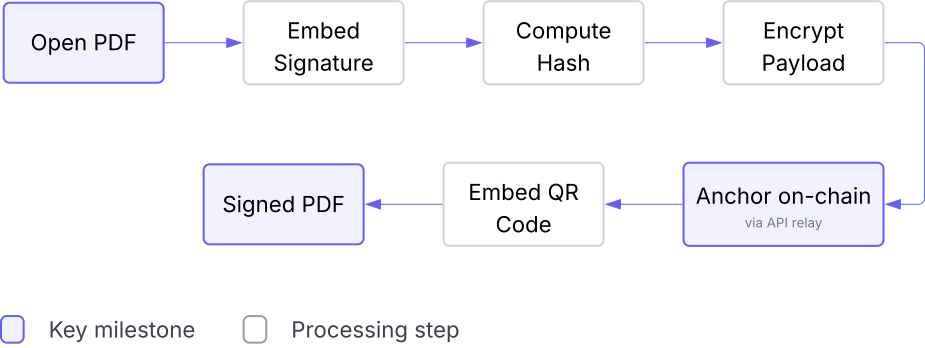
Embed Signatures
The signature image is embedded into the PDF at each specified location. The original document content is preserved through incremental updates -- previous versions of the PDF remain intact.
Compute Hash
A SHA-256 hash is computed over the document content after signature embedding but before QR embedding. This avoids a circular dependency: the QR contains the transaction hash, which depends on the document hash.
Build & Encrypt Payload
The signer's identity, document hash, timestamp, geolocation (if available), and a random salt are assembled into a payload. A composite hash of this payload is computed -- this is the only value stored on the blockchain.
The payload is then encrypted with a randomly generated key. The encrypted payload is sent to the API for storage. The key is never sent to any server.
Anchor on Blockchain
The API submits the composite hash to the smart contract and returns a transaction hash.
Embed QR Code
A QR code is generated encoding a verification URL that contains the transaction hash and the encryption key (in the URL fragment, which is never sent to any server). The QR is embedded into the PDF next to each signature.
6. Save
The user saves the signed PDF. The original file is never modified.
Multiple Signatures
When a previously signed document is signed again:
- The app detects existing signatures in the document
- The new signature references the previous transaction hash, creating a signature chain
- Verification shows all signatures in order